Documentation
Everything you need to know about setting up and using ParentChild to automatically organize your HubSpot companies into parent-child hierarchies.
Overview
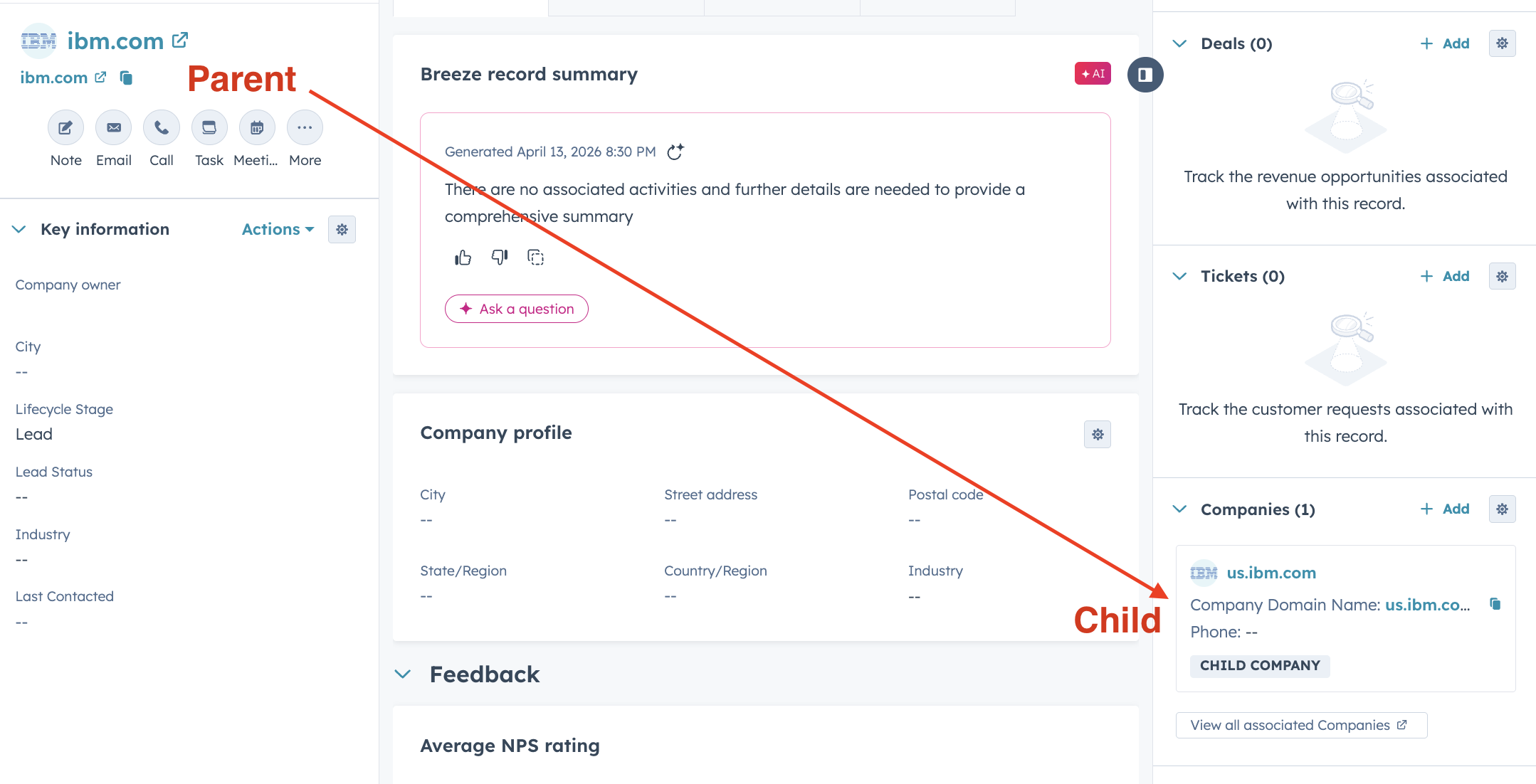
ParentChild is a HubSpot app that automatically creates parent-child company associations based on domain hierarchy. When a company with a subdomain (like us.ibm.com) exists in your CRM, ParentChild finds the company with the root domain (ibm.com) and links them together — the root domain becomes the parent, and the subdomain becomes the child.
ParentChild works in two ways:
Webhook (Go Live) Automation All Plans
Runs in the background automatically. Every time a company is created or its domain changes, ParentChild processes it instantly — no workflows needed.
Workflow Action Pro
A drag-and-drop action you can add to any HubSpot company workflow. Gives you full control with per-workflow customization options. Requires HubSpot Professional or Enterprise.
Installation
Step 1: Install the app
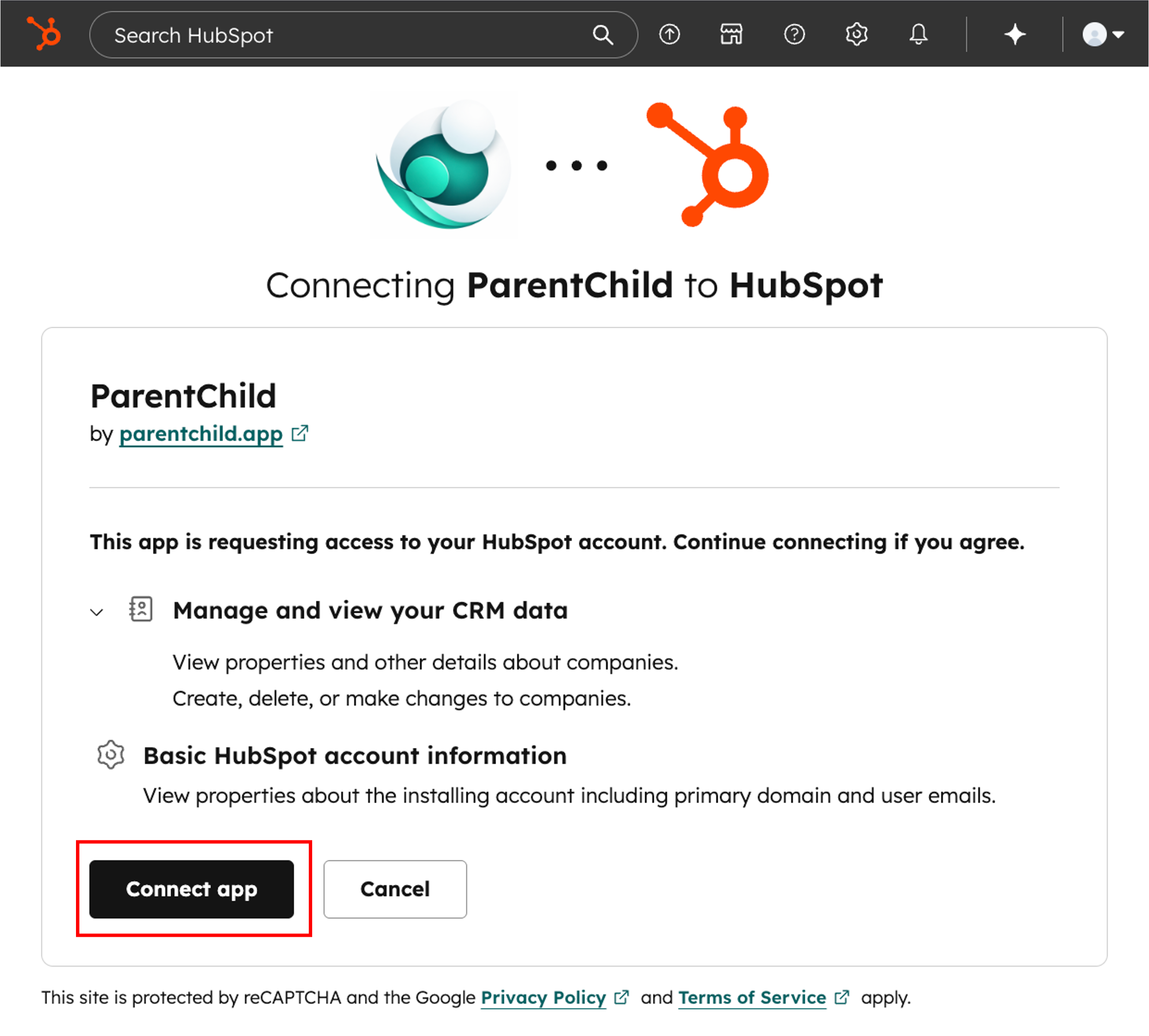
Click "Install Free" on the ParentChild homepage, or visit your HubSpot app marketplace. You'll be asked to authorize ParentChild with two permissions:
- Read companies — so ParentChild can look up existing companies by domain
- Write companies — so ParentChild can create parent-child associations
These are the only two permissions ParentChild requests. It cannot access contacts, deals, tickets, or any other HubSpot data.
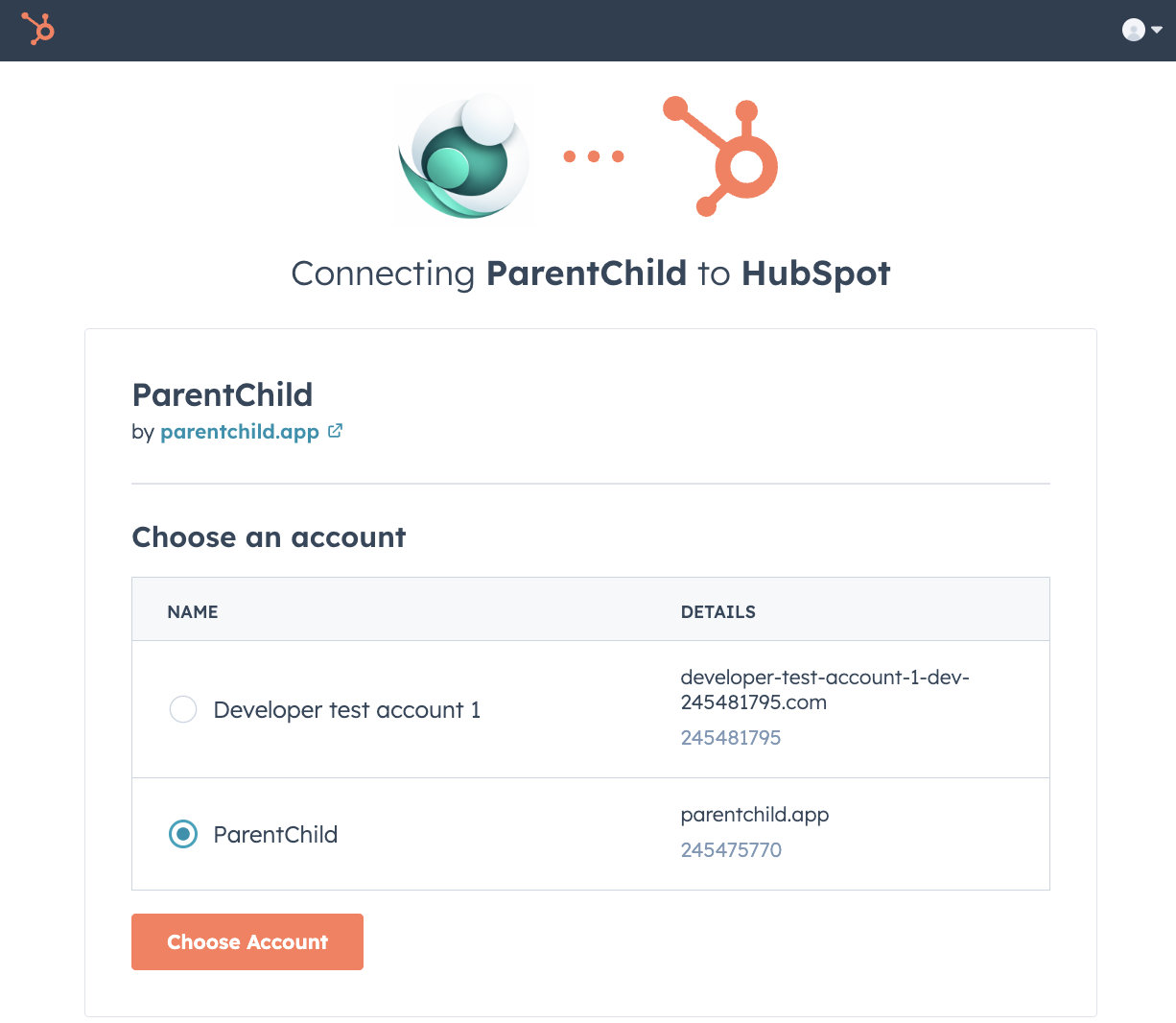
Select your HubSpot account and click "Choose Account":
Review the permissions and click "Connect app":
Step 2: Arrive at Settings
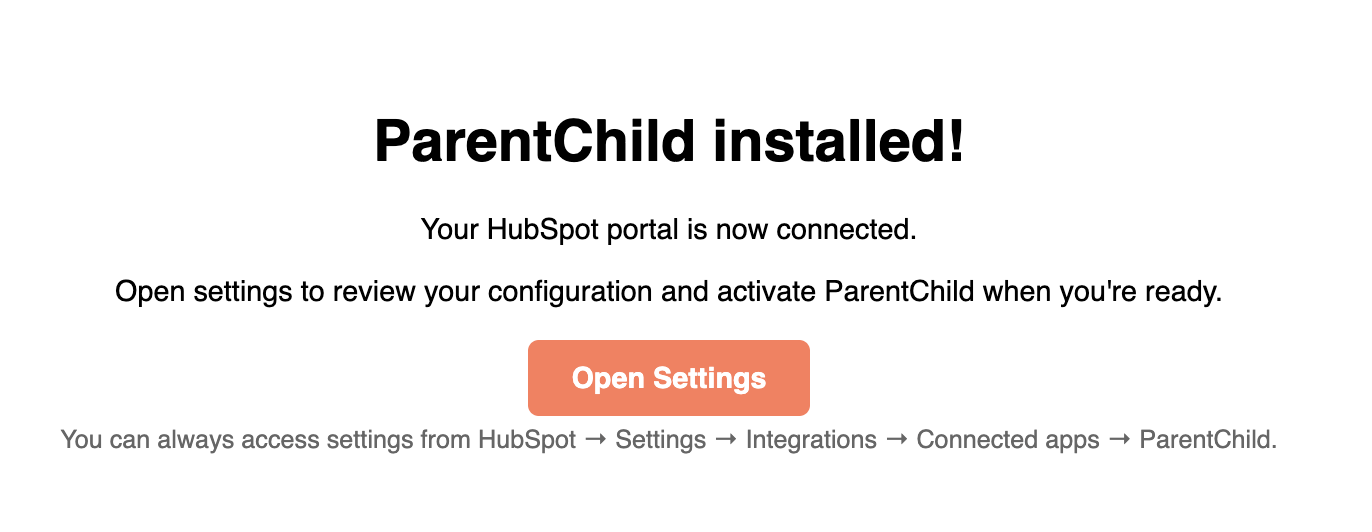
After authorizing, you'll see a confirmation page. Click "Open Settings" to continue to your ParentChild settings page — this is where you configure everything and activate the app.
The settings page URL is unique to your portal and secured with a time-limited token — more on that in Security.
Step 3: Configure your preferences
Before activating, review the settings available to you:
- Excluded Domain Extensions — domains you want ParentChild to skip (e.g.,
.gov,.edu) - Regional Domain Linking Pro — link regional domains (e.g.,
ibm.co.uk) to their primary domain (ibm.com) - Domain Property Pro — use a custom HubSpot property as the domain source instead of the default
domainfield
Activation (Go Live)
ParentChild is inactive after installation. This gives you time to review your settings before anything runs. When you're ready:
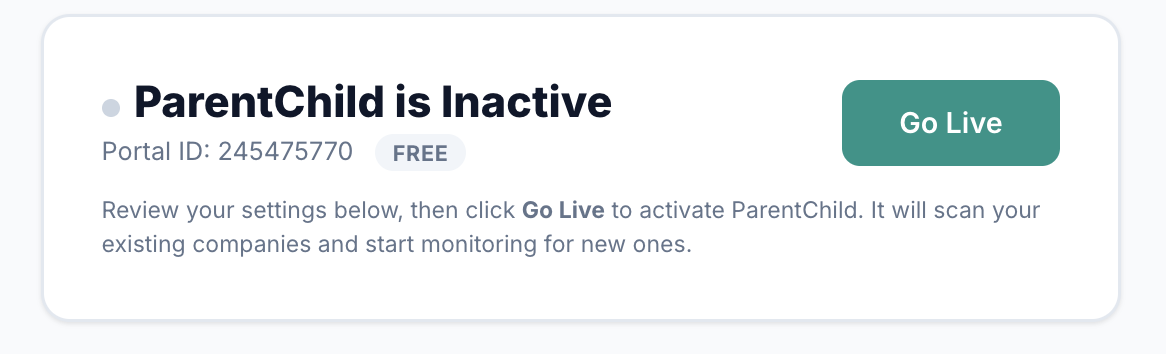
- Click the "Go Live" button on your settings page
- ParentChild will immediately run a backfill scan — it processes every existing company in your HubSpot portal, creating parent-child links for any matching domain hierarchies it finds
- From that point on, webhooks are active — every new company creation or domain change is processed automatically in real time
Alternative Activation: HubSpot Workflow Pro
If you prefer more control over when and how parent-child linking happens, you can skip Go Live entirely and use a HubSpot workflow instead. This lets you choose your own triggers, add conditions, and combine ParentChild with other workflow actions.
How it works
- In HubSpot, go to Automation → Workflows and create a new company-based workflow
- Set up your trigger — for example, "Company is created" or "Company property
domainis known" - Add the "Link Parent Company" action (search for "ParentChild" in the action list)
- Optionally configure per-workflow overrides for excluded extensions, regional linking, or domain property
- Activate the workflow
This gives you full flexibility: you can add filters, delays, branching logic, or combine ParentChild with other actions like sending notifications or updating properties.
⚠ Important: If you choose to use workflows, you should turn off Webhook (Go Live) Automation on your settings page first. Running both at the same time means the webhook and the workflow may both try to process the same company simultaneously, which can cause conflicts or duplicate processing. Pick one approach — Go Live or workflows — not both.
How It Works
Here's what ParentChild looks like in action — a HubSpot company record for ibm.com with us.ibm.com automatically linked as a child company:
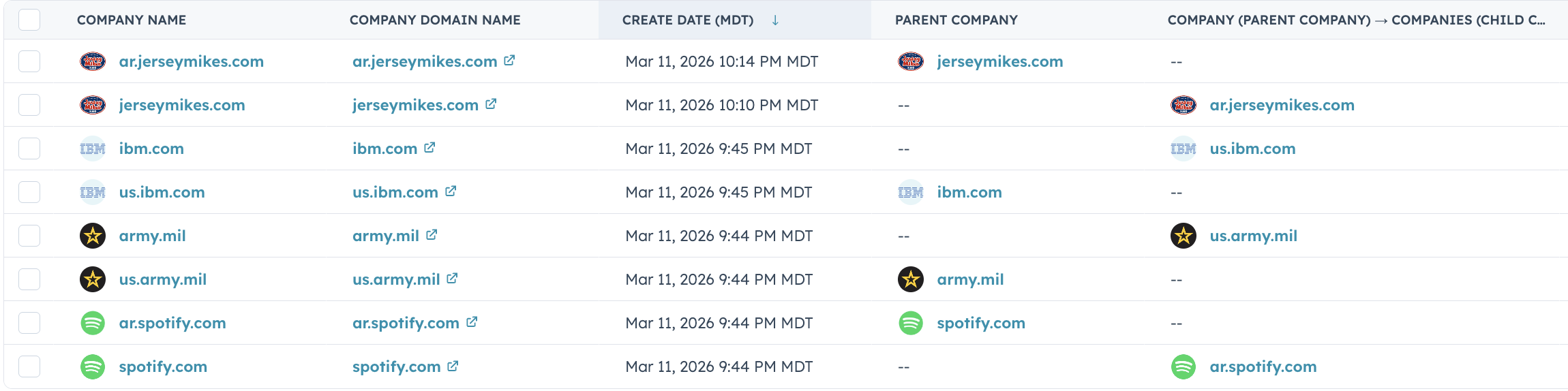
And here's a list view of multiple companies with their parent-child associations created by ParentChild:
When ParentChild processes a company, it follows these steps:
- Extract the domain — reads the company's
domainproperty (or your configured custom property) - Clean the domain — strips
http://,https://,www., and trailing slashes; converts to lowercase - Find the root domain — for
us.ibm.com, the root domain isibm.com. For multi-part TLDs like.co.uk, it correctly identifiesibm.co.ukas the root - Check exclusions — if the domain extension is in your excluded list (e.g.,
.gov), processing stops - Search HubSpot — looks for a company whose domain exactly matches the root domain
- Create the association — links the root-domain company as the parent and the subdomain company as the child using HubSpot's built-in Parent Company association type
Domain Hierarchy
ParentChild maps domains to a hierarchy. Here's how different domain patterns are handled:
| Child Domain | Parent Domain | Explanation |
|---|---|---|
us.ibm.com | ibm.com | Subdomain → root domain |
cloud.google.com | google.com | Subdomain → root domain |
aws.amazon.com | amazon.com | Subdomain → root domain |
shop.ibm.co.uk | ibm.co.uk | Subdomain → root (multi-part TLD) |
blog.example.com.au | example.com.au | Subdomain → root (multi-part TLD) |
ibm.co.uk | ibm.com | Regional → primary (requires Regional Linking) |
Domains that are already root domains (like ibm.com) trigger a reverse lookup instead — ParentChild searches for existing subdomain companies to link as children.
Multi-Part TLDs
Many countries use two-part domain extensions like .co.uk, .com.au, or .co.jp. ParentChild recognizes over 150 multi-part TLDs and handles them correctly.
For example, shop.ibm.co.uk is correctly parsed as a subdomain of ibm.co.uk — not co.uk.
Supported multi-part TLDs include extensions from:
- United Kingdom — .co.uk, .org.uk, .ac.uk, .gov.uk, .net.uk, .me.uk, .ltd.uk, .plc.uk
- Australia — .com.au, .net.au, .org.au, .edu.au, .gov.au, .id.au
- Brazil — .com.br, .net.br, .org.br, .gov.br
- Japan — .co.jp, .ne.jp, .or.jp, .ac.jp, .go.jp
- India — .co.in, .net.in, .org.in, .gov.in, .ac.in
- And 30+ more countries — China, South Korea, New Zealand, South Africa, Israel, Hong Kong, Taiwan, Singapore, Mexico, Colombia, Argentina, Turkey, Indonesia, Malaysia, Philippines, Vietnam, and many others
Reverse Lookup
Reverse lookup handles the case where a parent company is created after its children already exist in HubSpot.
For example: say you already have companies with domains us.ibm.com and uk.ibm.com in your CRM. When a company with domain ibm.com is later added, ParentChild automatically:
- Detects that
ibm.comis a root domain - Searches HubSpot for companies whose domain contains
ibm.com - Filters results to find actual subdomains (e.g.,
us.ibm.com,uk.ibm.com) - Links each subdomain company as a child of the new
ibm.comcompany
Settings Page
Your settings page is the control center for ParentChild. It shows:
- Activation status — whether ParentChild is active or inactive, with a toggle button
- Usage statistics — three stats: currently live associations, this billing cycle's count (with days remaining until reset), and all-time total
- Domain settings — excluded extensions, regional linking toggle, domain property selector
- Sync Now button — manually re-scan all companies
- Remove All button — undo every association ParentChild has created
Accessing Your Settings Page
After installing ParentChild, you can get back to your settings page at any time. There are two ways:
Option 1: Login button
Visit parentchild.app and click the Login button in the top navigation. This will take you through HubSpot's authentication — select your portal, and you'll land directly on your settings page.
Option 2: Direct install link
Go to app.parentchild.app/install. If you already have ParentChild installed, HubSpot will auto-approve the connection and redirect you straight to your settings page.
Link expiry
For security, settings page links expire after 24 hours. If you bookmarked a settings URL and it has expired, simply visit parentchild.app and click Login to get a fresh link. HubSpot may ask you to re-select your portal, but your settings remain intact.
Excluded Domain Extensions
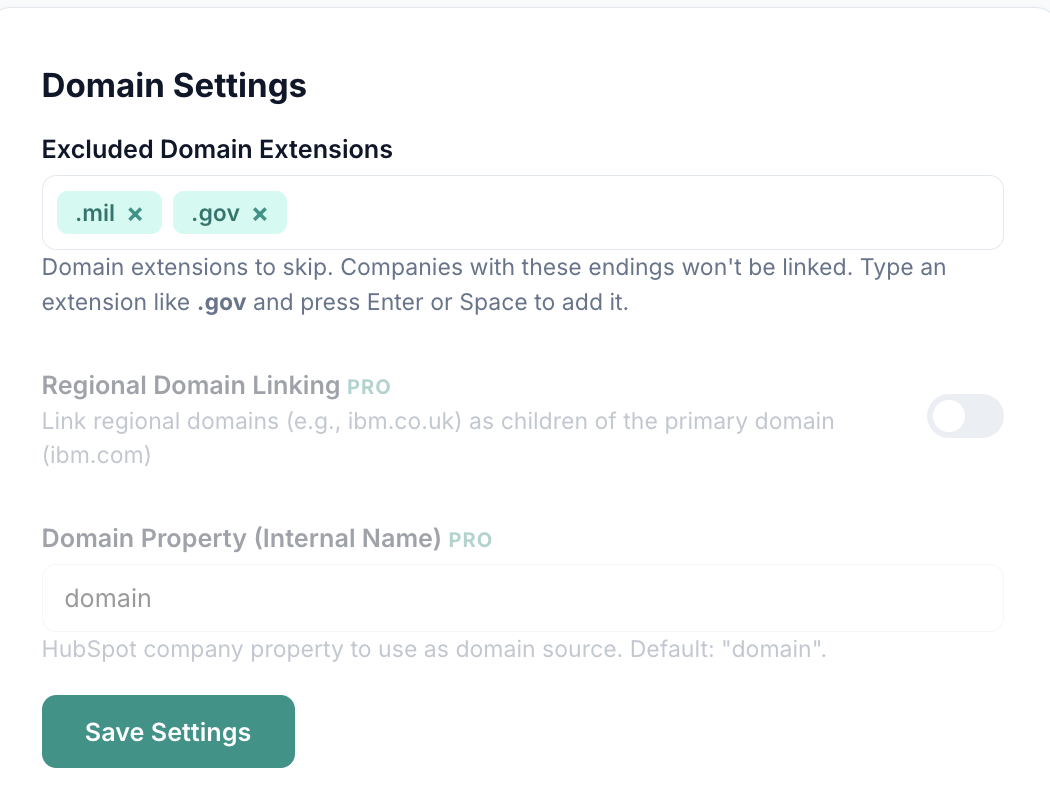
ParentChild processes all domain extensions by default — no extensions are excluded unless you add them. You can customize this list on your settings page.
How to use
- In the Excluded Domain Extensions field, type an extension (e.g.,
gov) and press Enter or Space - The extension appears as a removable pill/tag
- Click the × on any pill to remove it
- Press Backspace in an empty input to remove the last added extension
- Click Save Settings to apply
Include the leading dot when entering extensions — for example, type .gov to exclude government domains.
Common exclusions
| Extension | Why exclude |
|---|---|
.gov | Government domains — subdomain hierarchy doesn't imply corporate parent-child |
.edu | Universities — subdomains are departments, not child companies |
.mil | Military domains — not corporate entities |
.org | Nonprofits — may not want automatic hierarchy |
.int | International organizations — unique organizational structures |
Regional Domain Linking Pro
Regional linking connects companies with country-specific domains to their primary (typically .com) counterpart.
When enabled, a company with domain ibm.co.uk becomes a child of the company with domain ibm.com. The name portion of the domain (ibm) is extracted and matched to the .com version.
Examples
| Regional Domain | Linked Parent |
|---|---|
ibm.co.uk | ibm.com |
google.com.au | google.com |
amazon.co.jp | amazon.com |
samsung.co.kr | samsung.com |
How to enable
- Go to your settings page
- Check the "Enable Regional Domain Linking" checkbox
- Click Save Settings
Domain Property Pro
By default, ParentChild reads the built-in domain property on HubSpot company records. If your team stores the primary domain in a different custom property, you can override this.
How to configure
- On the settings page, enter the internal name of your custom property in the Domain Property field (e.g.,
company_website_domain) - Click Save Settings
Webhook (Go Live) Automation
Webhook (Go Live) Automation is the primary way ParentChild works. It activates when you click "Go Live" on your settings page and runs in the background with no additional setup.
What triggers it
- Company creation — when a new company record is created in HubSpot with a domain
- Domain change — when an existing company's
domainproperty is updated
How it processes
- HubSpot sends a webhook notification to ParentChild within seconds of the event
- The webhook payload is validated using HubSpot's v3 cryptographic signature to ensure authenticity
- Duplicate events are automatically filtered (HubSpot may occasionally resend events)
- ParentChild checks that your portal is active and within your tier's usage limits
- The domain is extracted, cleaned, and processed through the linking logic
- If a parent is found, the association is created and tracked
- If the domain is a root domain, a reverse lookup also runs
Compatibility
Webhook (Go Live) Automation works on all HubSpot plans — Free, Starter, Professional, and Enterprise. No workflows or automation features are required on the HubSpot side.
Workflow Action Pro
The workflow action lets you add ParentChild as a step in any company-based workflow in HubSpot. This gives you fine-grained control over when and how parent-child linking happens.
Requirements
- ParentChild Pro tier
- HubSpot Professional or Enterprise plan (required for custom workflow actions)
How to use
- In HubSpot, go to Automation → Workflows
- Create a new company-based workflow (or edit an existing one)
- Add an action step and search for "ParentChild" under Integrated apps
- Select "Link Parent Company"
- Optionally configure the customization fields (see below)
- Activate the workflow
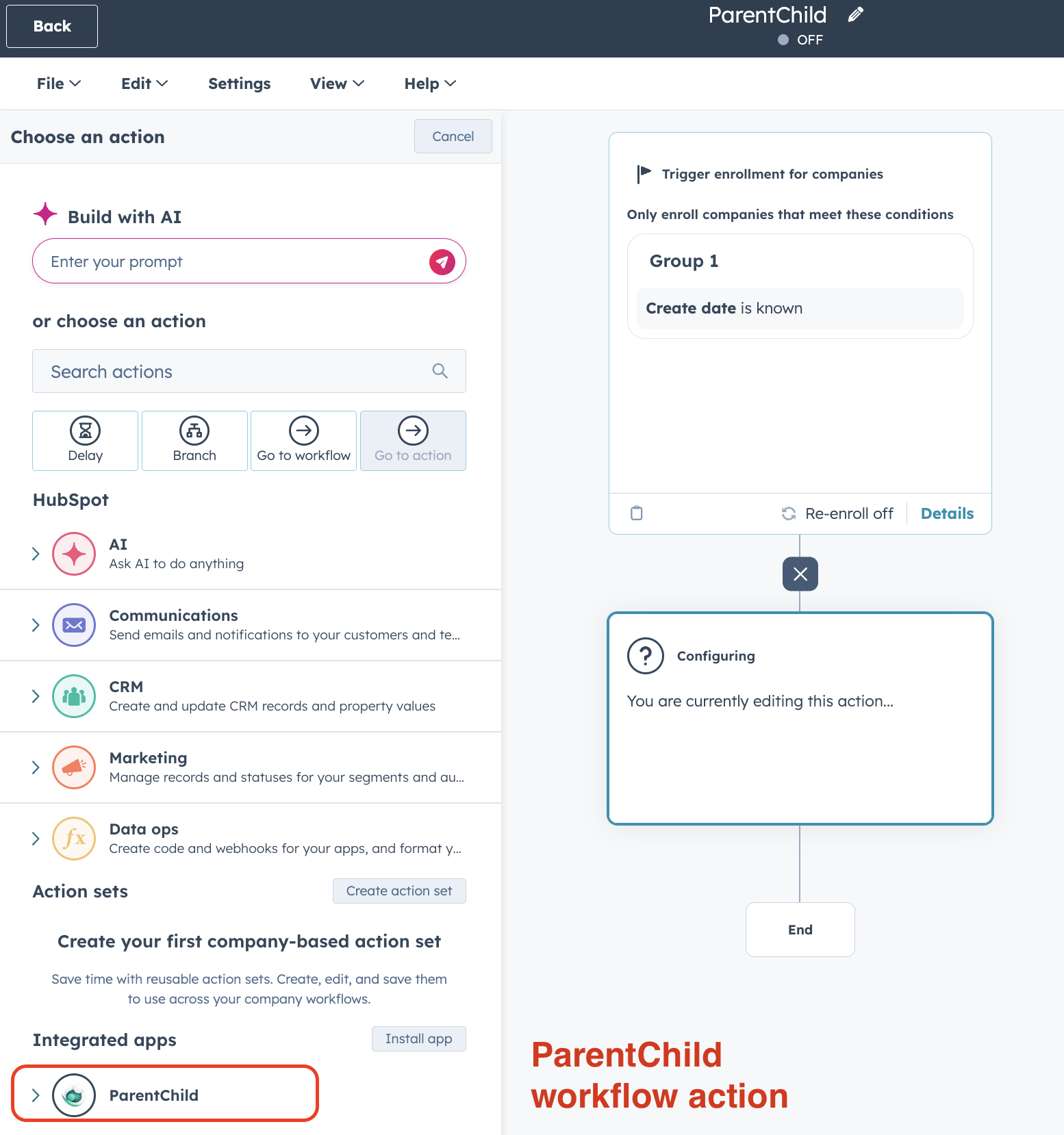
Once added, you can configure the action's customization fields directly in the workflow editor:
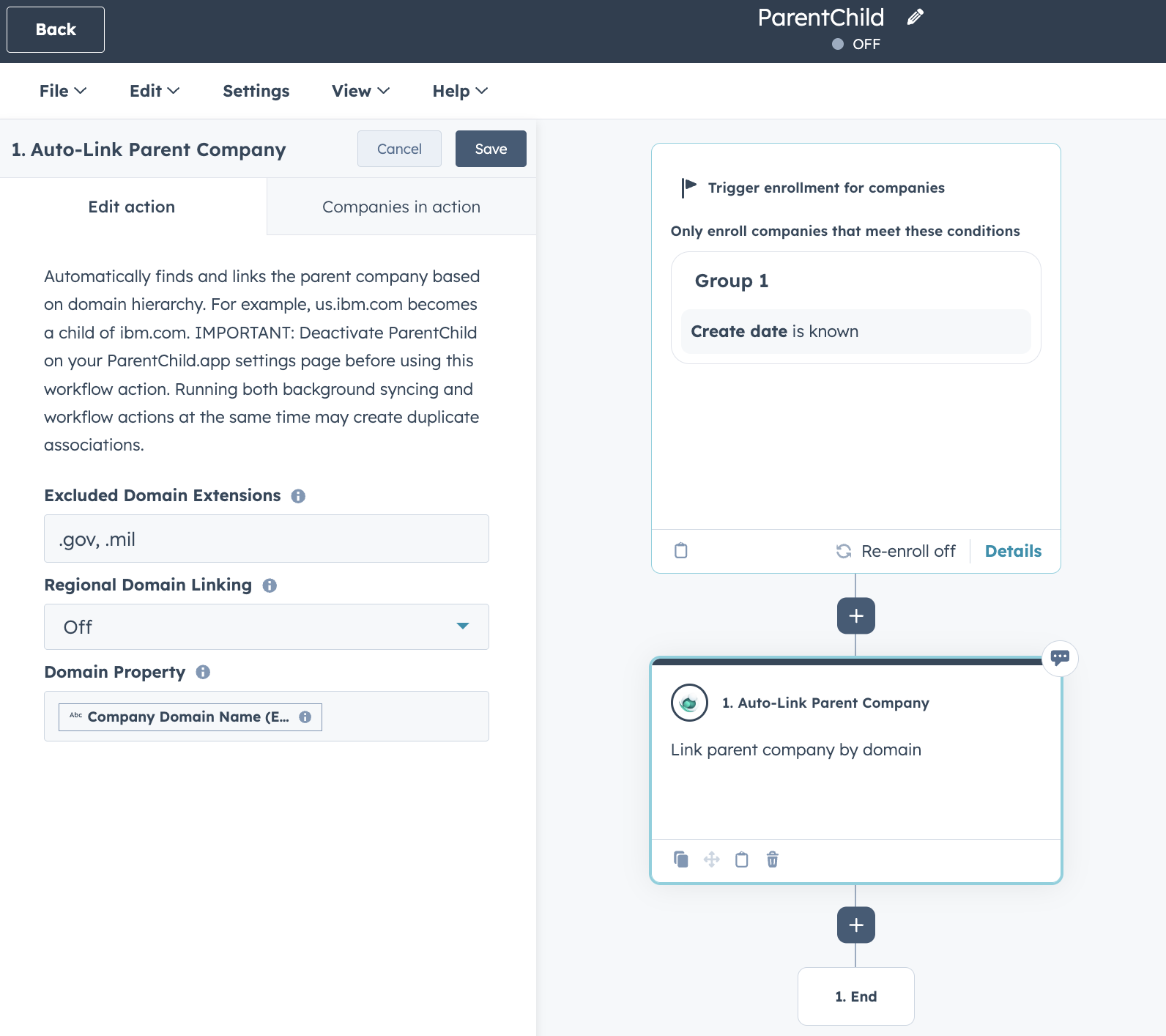
Customization fields
Each workflow action step can override your global settings with per-workflow values:
| Field | Description | Default |
|---|---|---|
| Excluded Domain Extensions | Comma-separated extensions to skip for this workflow (e.g., .gov, .mil, .edu, .org) |
Uses your global settings |
| Regional Domain Linking | Toggle on/off — whether to link regional domains to their .com counterpart |
Off |
| Domain Property | The HubSpot property to use as the domain source | domain |
Output fields
After the action runs, it returns data you can use in later workflow steps:
| Field | Description |
|---|---|
status | Result: linked, already_linked, no_parent_found, skipped_no_domain, skipped_root_or_excluded, or error |
parentCompanyId | HubSpot ID of the parent company (if linked) |
parentName | Name of the parent company (if linked) |
rootDomain | The root domain that was resolved |
Sync Now (Manual Backfill)
The Sync Now button on your settings page triggers a full backfill scan of every company in your HubSpot portal. This is the same scan that runs automatically when you first activate ParentChild.
When to use it
- After changing your domain settings (excluded extensions, regional linking, domain property)
- After upgrading to Pro — to process companies with your new settings
- If you imported a large batch of companies and want to ensure they're all linked
- Anytime you want a complete re-scan of your CRM
How it works
- Click "Sync Now" on the settings page
- ParentChild fetches every company from your HubSpot portal (paginated in batches of 100)
- Each company is evaluated for domain hierarchy and linked where appropriate
- Already-linked companies are skipped (no duplicates created)
- The page refreshes automatically when the scan is underway
Remove All Associations
The "Remove All Associations" button undoes every parent-child association that ParentChild has created. This is a complete rollback.
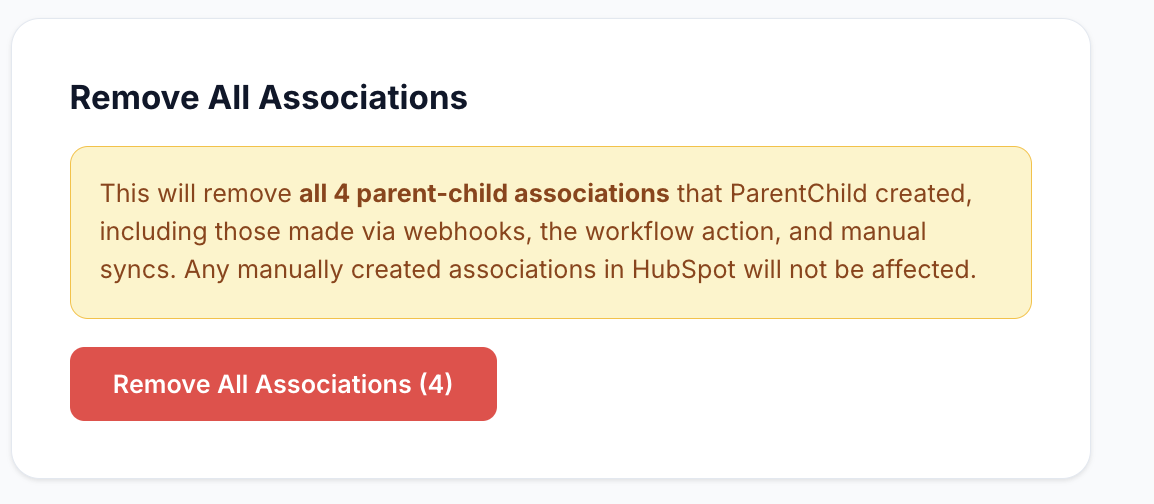
What it removes
ParentChild tracks every association it creates — whether from webhooks, the workflow action, or manual syncs. The Remove All button deletes only associations ParentChild created. It will never touch associations you created manually in HubSpot or associations made by other apps.
How to use
- On the settings page, scroll to the "Remove All Associations" section
- The button shows the count of tracked associations (e.g., "Remove All 47 Associations")
- Click the button and confirm the dialog
- ParentChild processes each association, removing it from HubSpot and its internal tracking
Rate Limits & Queuing
ParentChild is designed to handle high volumes of company events without hitting HubSpot's API rate limits. Whether you're activating Go Live for the first time on a large CRM, running a Sync Now on thousands of existing companies, or importing a bulk CSV — ParentChild processes everything reliably.
How it works
ParentChild uses a per-portal processing queue. When multiple events arrive at once — from a bulk import, an initial activation scan, or rapid company creation — they are received instantly but processed one at a time with automatic spacing between API calls. This keeps requests well within HubSpot's rate limits.
What this means for you
- No companies are skipped or lost — every event is queued and processed in order
- No manual intervention required — the queue runs automatically in the background
- Large accounts are fully supported — whether you have 500 or 50,000 companies
- Processing time scales linearly — expect roughly 1 minute per 1,000 companies
- You can close the page — processing continues in the background on the server
When queuing applies
- First-time activation (Go Live) — scans all existing companies in your CRM
- Sync Now — re-scans all companies on demand
- Bulk CSV imports — HubSpot fires a webhook per company; all are queued
- Rapid company creation — manual or via API, all events are queued
The queue clears automatically once all events are processed. If new events arrive while the queue is active, they are simply added to the end.
How to Disconnect
Disconnecting means deactivating ParentChild so it stops processing new company events. Your app stays installed, your settings are preserved, and you can reactivate at any time.
Steps to disconnect
- Open your ParentChild settings page (visit app.parentchild.app/install if your link has expired)
- Click the "Deactivate" button at the top of the page
- ParentChild immediately stops processing webhooks and new company events
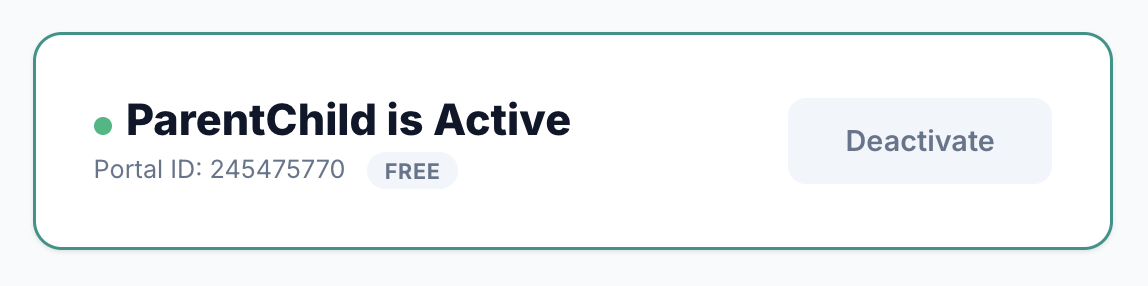
What happens when you disconnect
- All existing associations remain — nothing is removed from HubSpot
- Settings are preserved — your excluded extensions, regional linking preference, and domain property selection stay saved
- Usage history is preserved — your billing cycle and counts remain intact
- You can reactivate anytime — click "Go Live" again to resume processing
How to Uninstall
Uninstalling completely removes ParentChild from your HubSpot portal and deletes your data from our servers. To fully uninstall, you must complete both steps below.
Step 1: Uninstall from ParentChild
- Go to your ParentChild settings page
- Scroll to the bottom and click "Uninstall ParentChild"
- Confirm the dialog
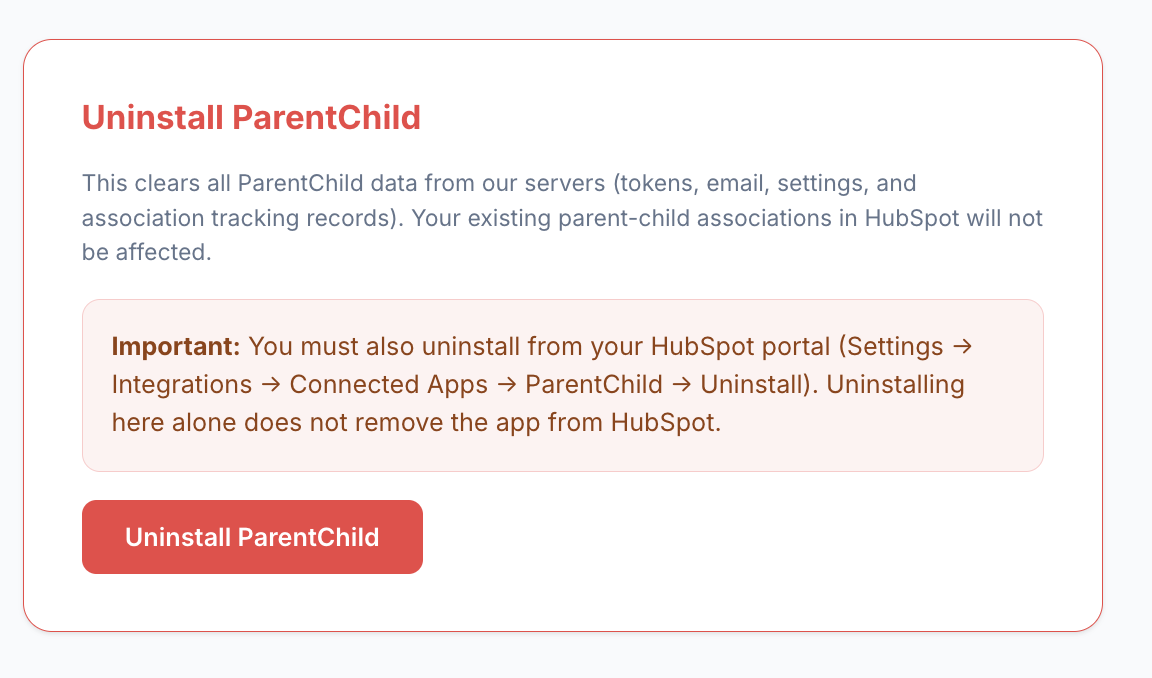
This immediately deletes your OAuth tokens, account email, settings, and association tracking records from our servers.
Step 2: Uninstall from HubSpot
- In HubSpot, go to Settings (gear icon in the top navigation)
- Navigate to Integrations → Connected Apps
- Find ParentChild in the list of connected apps
- Click "Uninstall" and confirm the dialog
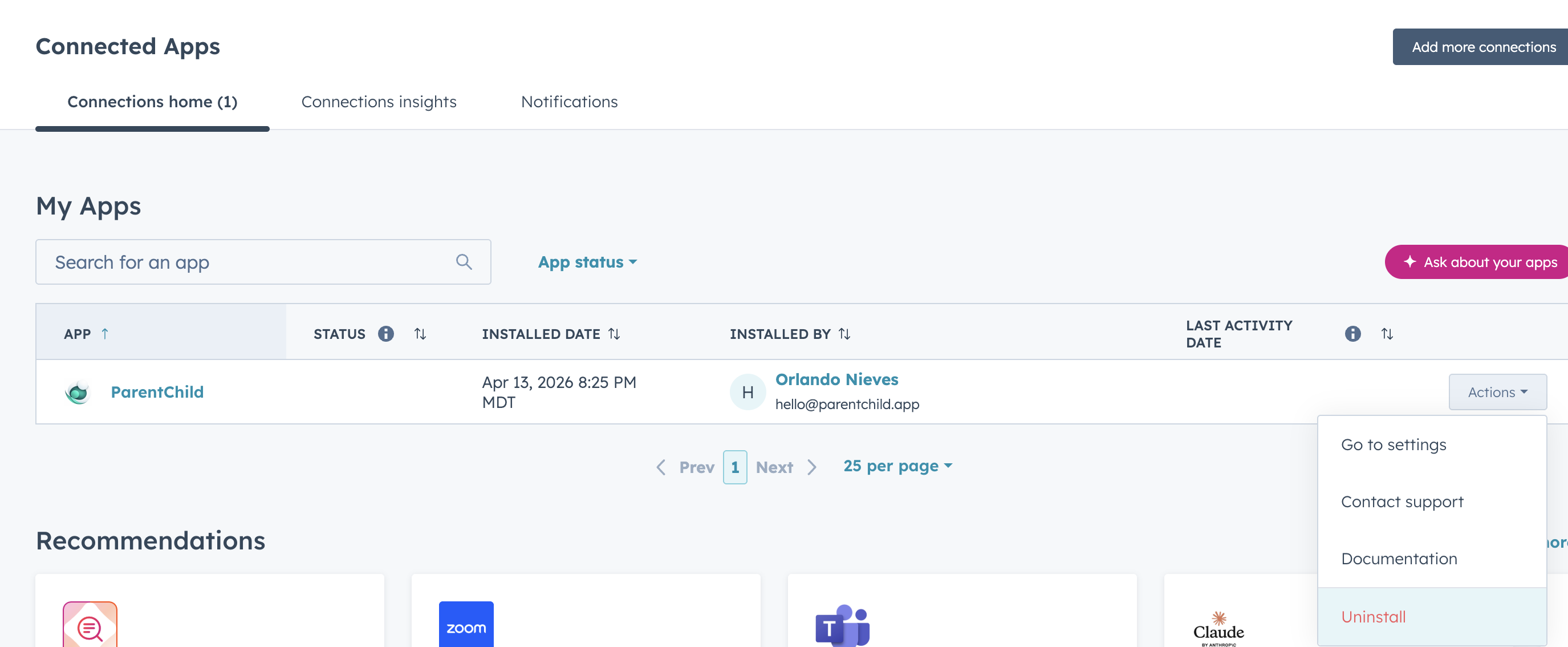
This revokes OAuth access and removes the app from your HubSpot account. For more details, see HubSpot's guide to uninstalling connected apps.
What happens when you uninstall
- OAuth tokens are deleted — ParentChild can no longer access your HubSpot portal
- Settings and configuration are removed — excluded extensions, regional linking preference, domain property selection
- Association tracking records are deleted — the "Remove All" feature will no longer be available for previously created associations
- Existing parent-child associations remain in HubSpot — associations are native HubSpot records and are not affected by uninstalling
- Usage history is preserved — if you reinstall, your billing cycle and free tier counter are maintained (this prevents abuse of the free tier)
- Your Pro subscription (if active) is not automatically canceled — cancel your subscription before uninstalling to avoid continued billing. Visit your ParentChild settings page and use the Manage Subscription link to access the Lemon Squeezy customer portal, or contact hello@parentchild.app.
Data Consequences
Here's a detailed comparison of what happens to your data when you disconnect (deactivate) vs. fully uninstall ParentChild (both steps — ParentChild settings page and HubSpot portal).
| Data | Disconnect (Deactivate) | Uninstall |
|---|---|---|
| Parent-child associations in HubSpot | Kept | Kept |
| App settings (exclusions, regional linking, domain property) | Kept | Deleted |
| OAuth tokens (API access) | Kept | Deleted |
| Association tracking history | Kept | Deleted |
| "Remove All" undo capability | Available | Lost (tracking data deleted) |
| Usage counts & billing cycle | Kept | Kept (preserved across reinstall) |
| Tier (Free / Pro) | Kept | Kept (preserved across reinstall) |
| Webhook processing | Paused | Stopped permanently |
| Pro subscription | Unaffected | Unaffected (cancel via settings page or contact us) |
Free vs Pro
| Feature | Free | Pro |
|---|---|---|
| Webhook (Go Live) Automation | ✓ | ✓ |
| Backfill scan (Go Live & Sync Now) | ✓ | ✓ |
| Reverse lookup | ✓ | ✓ |
| Remove All (undo) | ✓ | ✓ |
| Settings page & activation toggle | ✓ | ✓ |
| Usage statistics & billing countdown | ✓ | ✓ |
| Associations per billing cycle | 100 | Unlimited |
| Custom excluded domain extensions | ✓ | ✓ |
| Regional domain linking | — | ✓ |
| Custom domain property | — | ✓ |
| Workflow action | — | ✓ |
| Pricing | $0 / month | $19 / month or $149 / year |
Upgrade & Manage Subscription
Upgrading to Pro
You can upgrade to Pro at any time directly from your ParentChild settings page. A prominent upgrade banner shows both pricing options — monthly ($19/month) and annual ($149/year, saving over 30%).
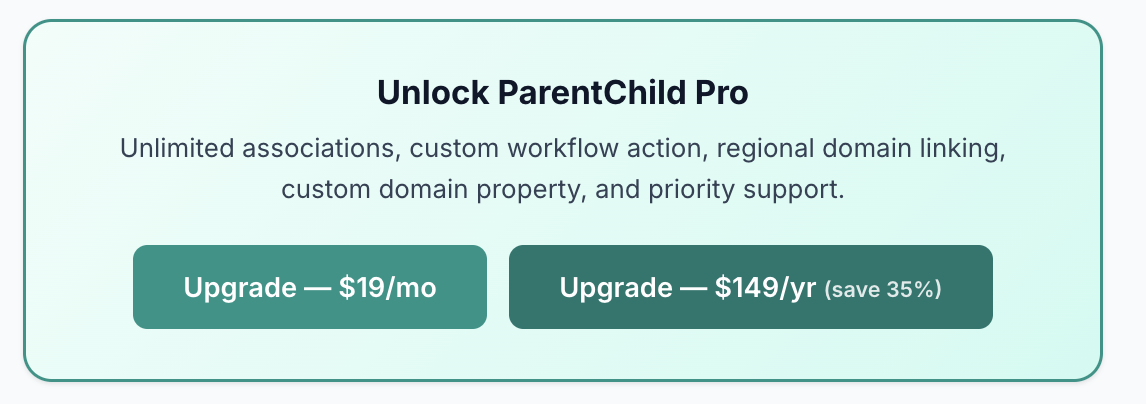
Clicking either option takes you to a secure checkout page to complete your purchase. Your upgrade takes effect immediately — no need to reinstall or reconfigure anything.
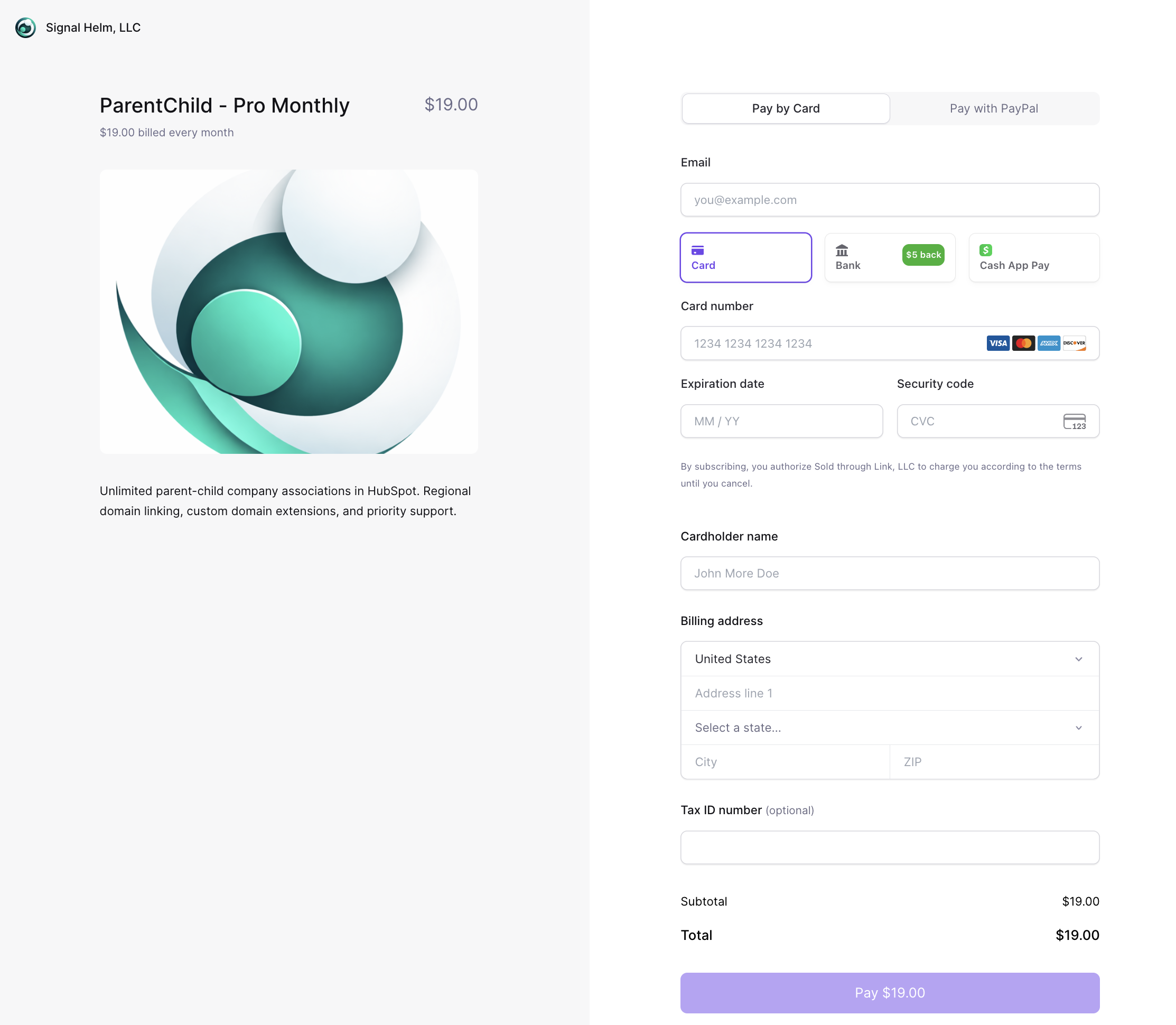
Once upgraded, ParentChild automatically:
- Removes the 100-association billing cycle limit
- Unlocks regional domain linking, custom domain property, and the workflow action
- Shows a sync banner prompting you to run a backfill scan with your new Pro settings
Managing your subscription
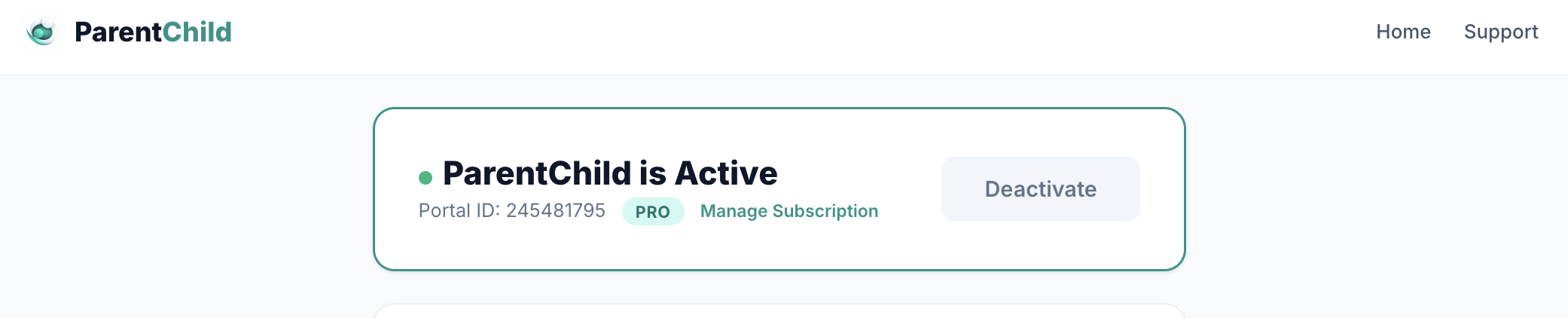
After upgrading, a Manage Subscription link appears on your settings page. This takes you to the Lemon Squeezy customer portal where you can:
- Update your payment method
- Switch between monthly and annual plans
- View your billing history and download invoices
- Cancel your subscription
Billing Cycle
Your billing cycle is based on the day you installed ParentChild, not the calendar month.
For example, if you installed on March 9th, your billing cycle runs from the 9th of each month to the 8th of the next month. Your free tier limit of 100 associations resets at the start of each new cycle.
The settings page shows how many days remain in your current billing cycle.
Usage Tracking
Every successful association created by ParentChild counts toward your billing cycle usage. This includes associations from:
- Webhook (Go Live) Automation (company creation and domain changes)
- Workflow action executions
- Backfill scans (Go Live and Sync Now)
- Reverse lookups
The following do not count against your usage:
- Companies that are skipped (excluded TLD, no domain, already root domain)
- Companies where no parent is found in your CRM
- Companies that are already linked (duplicate detection)
- Self-matches (company's own domain is the root domain)
Free tier limit
On the Free plan, you can create up to 100 associations per billing cycle. When you reach the limit:
- New associations are paused until the next billing cycle
- You'll receive an email notification at the address associated with your HubSpot account
- A warning banner appears on your settings page
- Existing associations remain in place — nothing is removed
Data Access
ParentChild accesses the minimum data necessary to function. Here's exactly what it reads and writes:
| Data | Access | Purpose |
|---|---|---|
| Company domain | Read | Determine domain hierarchy for linking |
| Company name | Read | Display in workflow action output and logs |
| Company associations | Read / Write | Create and remove parent-child associations |
| User email | Read (once) | Send free tier limit notification |
ParentChild does not access or store: contacts, deals, tickets, notes, emails, tasks, marketing data, reports, or any other HubSpot objects.
Security
OAuth authentication
ParentChild uses HubSpot's standard OAuth 2.0 flow. Your access tokens are encrypted and stored securely. Tokens are automatically refreshed before they expire — you never need to re-authenticate.
Settings page protection
Your settings page is protected by two independent security layers:
- Time-limited URL token — each settings URL contains an HMAC-signed token that expires after 24 hours. After expiry, you'll see a friendly page with a link to get a fresh URL.
- Secure session cookie — a httpOnly cookie is set during the OAuth flow. Even if someone obtains your settings URL, they can't access your settings without the cookie (e.g., in incognito mode or a different browser).
Webhook validation
All incoming webhooks from HubSpot are validated using v3 HMAC-SHA256 signatures. This ensures that only authentic HubSpot events are processed — forged requests are rejected. Requests older than 5 minutes are also discarded to prevent replay attacks.
Uninstall
When you uninstall ParentChild from your HubSpot portal:
- All access tokens are immediately deleted
- All tracked association records are deleted
- Installation settings are removed
- Existing parent-child associations in HubSpot remain in place (they're native HubSpot associations)
Troubleshooting
My companies aren't getting linked
- Is ParentChild active? Check your settings page — the status should show "Active". If not, click "Go Live".
- Does the company have a domain? ParentChild needs a domain to work with. Companies without a domain are skipped.
- Is the domain extension excluded? Check your excluded extensions list on the settings page.
- Does the parent company exist? ParentChild can only link to a parent company that already exists in your CRM with the matching root domain. If neither exists yet, the first one created will trigger a reverse lookup when the second is added.
- Have you hit the free tier limit? Check your usage stats on the settings page. If you've reached 100 for the current billing cycle, new associations are paused until it resets.
Associations are in the wrong direction
ParentChild always assigns the root-domain company as the parent and the subdomain company as the child. If your hierarchy is intentionally reversed (e.g., us.ibm.com should be the parent of ibm.com), ParentChild isn't the right fit for that use case — it follows standard domain hierarchy conventions.
Settings page says "Link Expired"
Settings URLs expire after 24 hours. To get a fresh link, visit the install page. HubSpot may ask you to re-select your account, but once confirmed you'll land on a fresh settings page with all your settings intact.
Settings page won't load (session error)
The settings page requires a secure session cookie that's set during the OAuth flow. If you're accessing the page in incognito mode, a different browser, or if someone shared their settings URL with you, it won't work. Visit the install page in your current browser to start a fresh session.
Regional linking isn't working
- Make sure you're on the Pro tier — regional linking is a Pro feature
- Verify the setting is enabled on your settings page
- The
.comversion of the company must exist in your CRM (e.g., foribm.co.ukto link, a company with domainibm.commust exist) - After enabling regional linking, use Sync Now to process existing companies
FAQ
Does ParentChild work with HubSpot Free?
Yes. Webhook (Go Live) Automation works on all HubSpot plans, including Free. The only feature that requires HubSpot Professional or Enterprise is the workflow action.
What happens when I uninstall and reinstall?
Your usage history is preserved — reinstalling doesn't reset your free tier counter. Your tier (Free/Pro) and original install date are also preserved, so your billing cycle stays the same.
Can ParentChild create duplicate associations?
No. If an association already exists between two companies, HubSpot returns a "loop detected" response. ParentChild recognizes this and skips the pair — it's handled gracefully and doesn't count against your usage.
Will ParentChild overwrite my manually-created associations?
No. ParentChild only creates associations — it never modifies or removes existing ones (unless you use the Remove All button, which only affects ParentChild-created links).
How fast does Webhook (Go Live) Automation process?
Typically within a few seconds of the company being created or updated. HubSpot sends webhook events in near real-time. ParentChild uses a per-portal queue to process events one at a time, which prevents rate limit issues even during bulk imports.
What if I have thousands of companies?
ParentChild is built for large portals. The backfill scan (Sync All Companies) processes companies in batches with built-in rate limit handling and retry logic — there's no upper limit. For webhook events (e.g., a bulk import of thousands of companies), ParentChild queues events per portal and processes them sequentially with automatic spacing to stay within HubSpot's API rate limits. No companies are skipped or lost.
Can I use the workflow action and Webhook (Go Live) Automation at the same time?
Yes, but it's usually unnecessary. Both can be active — ParentChild handles duplicate associations gracefully. If you want precise control via workflows, you can deactivate Webhook (Go Live) Automation on the settings page and rely solely on the workflow action.
What data does ParentChild store?
ParentChild stores: your HubSpot portal ID, OAuth tokens (for API access), the email of the user who installed (for notifications), your settings preferences, usage counts, and a record of which associations it created (for undo support). See Data Access for full details.
Support
Need help? Have a question not covered here?
- Email: hello@parentchild.app
We typically respond within 24 hours on business days.